
How To See Blocked Numbers On iPhone?
If you’ve blocked a number and later forgotten who it was, or need to unblock someone you blocked by mistake, you’ll want to know how to see blocked numbers on iPhone.
The process is straightforward and takes only a few taps. Here’s how to do it.
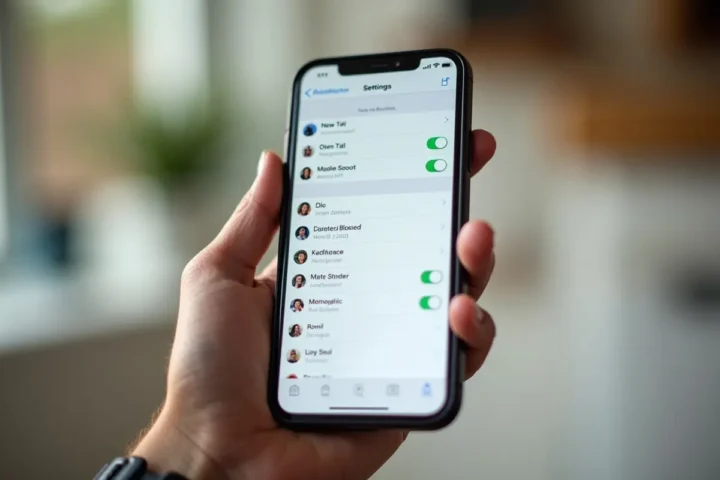
Finding Your Blocked Contacts List
The process takes just a few taps:
- Open the Settings app on your iPhone
- Scroll down and tap Phone
- Tap Blocked Contacts
That’s it. You’ll now see a complete list of every phone number and contact you’ve blocked from calling you.
What You Can Do From This Screen
Once you’re viewing your blocked list, you have a couple of options. If you want to unblock someone, simply swipe left on their name or number and tap Unblock. You can also tap Edit in the top-right corner, then tap the red minus icon next to any contact you want to remove from the list.
If you want to add someone new to your blocked list while you’re here, scroll to the bottom and tap Add New to select a contact.
Other Places Blocking Applies
It’s worth knowing that when you block a number through the Phone settings, that block also applies to FaceTime calls and text messages from that number. The blocked contact won’t be notified that they’ve been blocked — their calls will simply go straight to voicemail, and their messages won’t be delivered to you.
You can also view blocked contacts specifically for Messages and FaceTime by going to Settings, then selecting either Messages or FaceTime, and tapping Blocked Contacts from there. All three lists sync together, so you’ll see the same contacts regardless of which path you take.
A Quick Tip
If you blocked a number that wasn’t saved in your contacts, it will appear as just a phone number in your blocked list rather than a name. This can make it tricky to remember why you blocked it. Consider saving unknown numbers with a descriptive name like “Spam Caller” before blocking them, so you’ll have context later.
Now you know exactly where to find your blocked numbers and how to manage them. It’s a small feature, but useful for keeping your contact list and communications under your control.


Open Settings, then Phone, then Blocked Contacts to view your list of blocked numbers. Tap Edit to remove any entries. You can also check Settings > Messages or Settings > FaceTime. They both display the same blocked list.
Tap Settings, then Phone, then Blocked Contacts to see a complete list of all the numbers you’ve blocked on your iPhone.
To access Blocked Contacts, go to Settings > Phone > Blocked Contacts. You can also reach them via Settings > Messages. Here you’ll see all blocked contacts and numbers. Tap Edit to delete entries. For another quick way to view and manage your list, navigate to Settings > FaceTime > Blocked.
If you’re wondering how to view blocked numbers on iphone 17, it’s easy. Just head to Settings > phone > blocked contacts. The same list is also accessible through settings > messages or settings > facetime. From any of these screens, you can see all blocked contacts and numbers. Tap edit to remove any entries you no longer need.